

Before you start
- You need a template, and templates turned on for your account (they need Seats, and an account administrator turns them on). See How do I create a template?.
- A colleague’s template works only if your account has the “Shared documents” add-on and your colleague shared it.
- Use a computer. This does not work on a mobile device.
Steps
- Click “Templates” in the left menu.
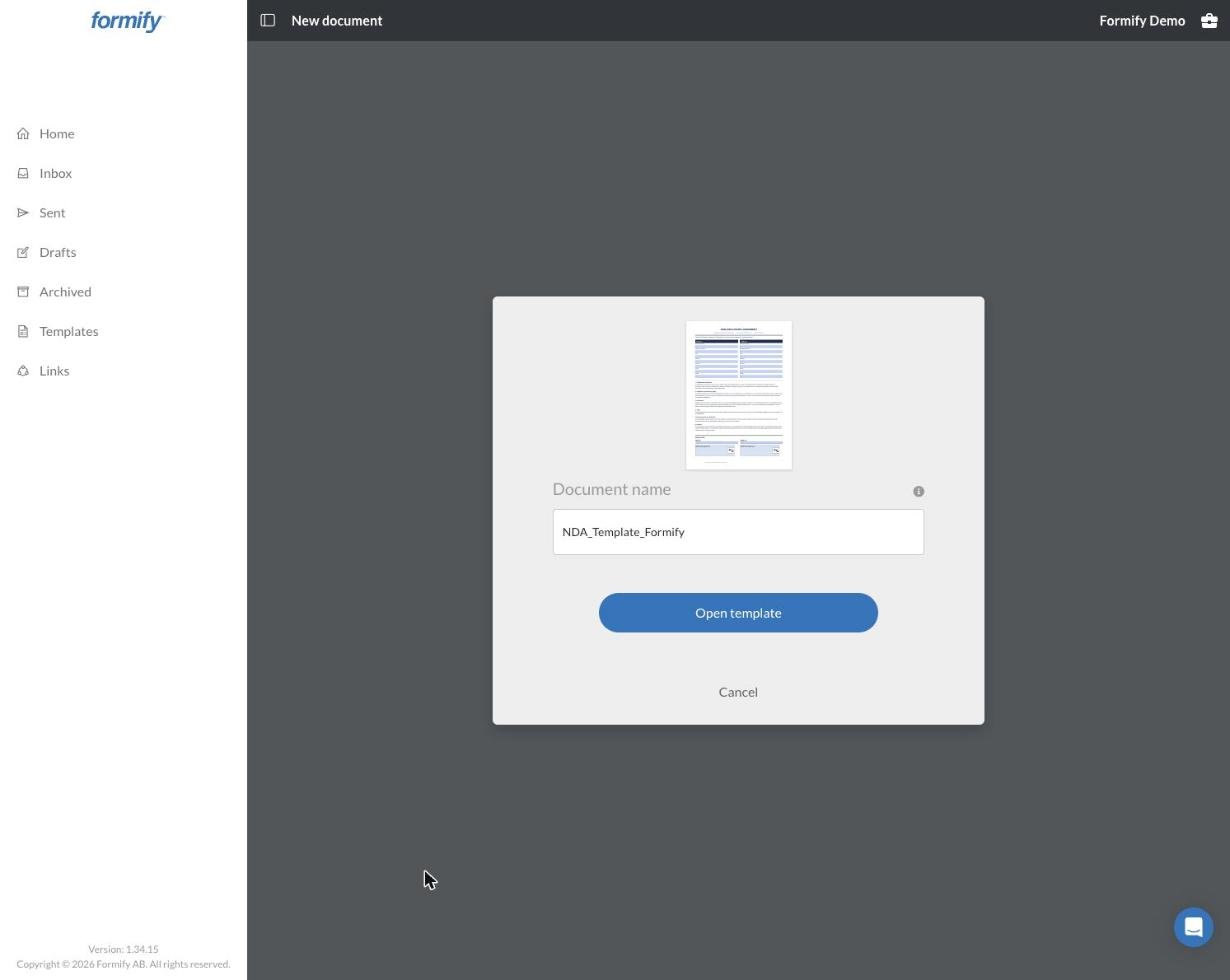
- Click the template name. The page “New document” opens with a preview.
- Change “Document name” if you like. It is prefilled with the template name and shows in the email or text message to the signers.
- Click “Open template” to continue to the editor.
- Fill in each signer’s name and an email address or mobile number. Details saved in the template are already filled in. Then click “Next” and follow the steps to send. See How do I send a document for signing?.
Good to know / Troubleshooting
- I clicked a template and got “New document”. That is right. It is how you start a new document from a template. Click “Open template”.
- “The document has not been sent”. You clicked “Cancel” or tried to leave the page before sending. Choose “Save as draft” to keep it, “Yes” to leave without saving, or “No” to stay. After “Cancel”, “Yes” takes you to an empty upload page.