

Steps
- Click “Inbox” or “Sent” in the left menu.
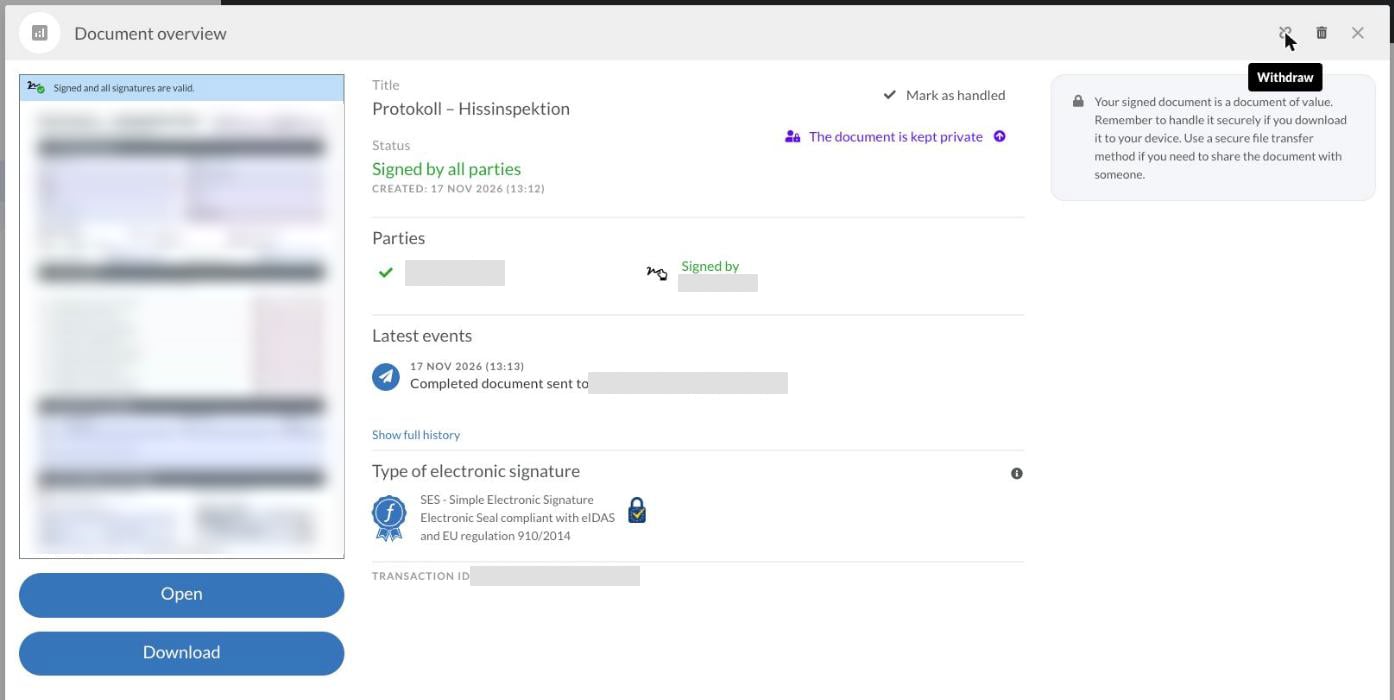
- Click the document name. The window “Document overview” opens.
- Find “Type of electronic signature” in the middle column.
- Hover over the small i icon to read the explanation: the label shows the document’s lowest signature classification.
- To see each signer’s own method, look at the small icon in front of the signer’s status, such as “Signed by”, under “Parties”. The icon shows the signature method, such as Draw signature or Live ID. It does not say SES or AES.
Good to know / Troubleshooting
- Why does it say SES when one signer used Live ID? The label shows the lowest level among all signatures. The document is AES only if every signer used an AES type.
- The SES/AES line is always in English, also when the app is in Swedish or Spanish.
- By default, the verification of the signatures is part of the signed document. The link “DOWNLOAD VERIFICATION ISSUED FOR THIS DOCUMENT” is shown in the same window only for a signed document that was sent with “Embed document verification in signed document” turned off.