

Steps
- Click “Sent” in the left menu. It lists documents that are not yet signed by everyone. When everyone has signed, the document moves to “Inbox”.
- Look at the “Status” column for a quick overview, for example “Awaiting signatures” in “Sent” or “Signed by all parties” in “Inbox”.
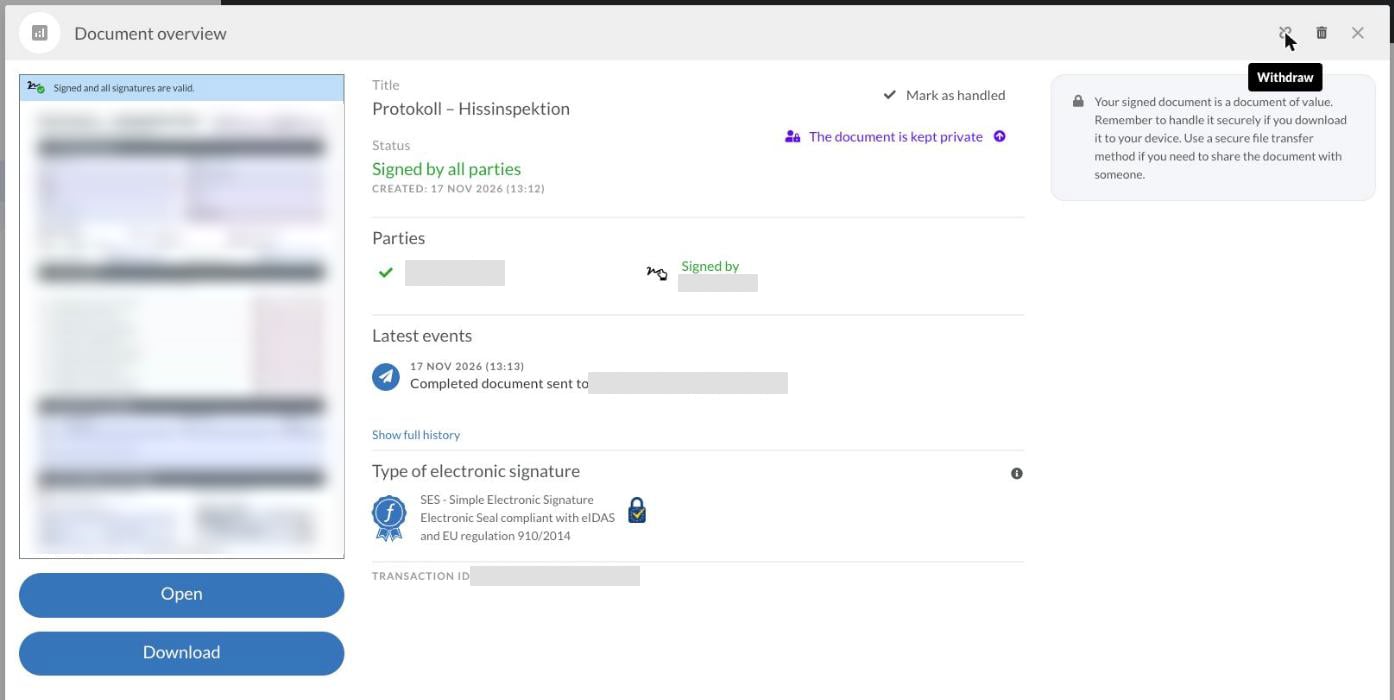
- Click the document name. The window “Document overview” opens.
- Under “Parties” you see each signer: a green check mark and “Signed by” when signed, or “Pending” when not yet signed.
- Under “Latest events”, click “Show full history”. You see every event with date and time, for example “Sent to … by email”, “Opened by … through phone link” and “Signed by …”.
- Close the window with the X at the top right.
Good to know / Troubleshooting
- Need a printable record? When the full history is open, click “Open printable audit log”.
- I can’t find an old document. Documents signed by everyone are in “Inbox”, not in “Sent”. Archived documents are only in “Archived”. In “Sent”, set “Show:” to “Expired document” or “Withdrawn” to find those.
- “Expired document” in red means the document was not completed in time.
- With signing order on, the signers are grouped under “Signing order 1”, “Signing order 2” and so on. Signers whose turn has not come yet show “Waiting for signing order”.