

Before you start
- Signing links are the add-on “Formify links”. It works on Free, Top-up and Seats. You pay credits from your shared wallet for each active link every month. Each signature through the link also uses credits, like any other signature. See formify.eu/pricing.
- Only account administrators can turn the add-on on. Click the lock next to “Links” in the left menu. The store opens on the tab “Add-ons”. Switch on “Formify links”. See How do I turn on add-ons such as signing links or templates?
- Use a computer. Creating a link does not work on a mobile device.
Steps
- Click “Links” in the left menu.
- Click the blue “New link” button at the top right.
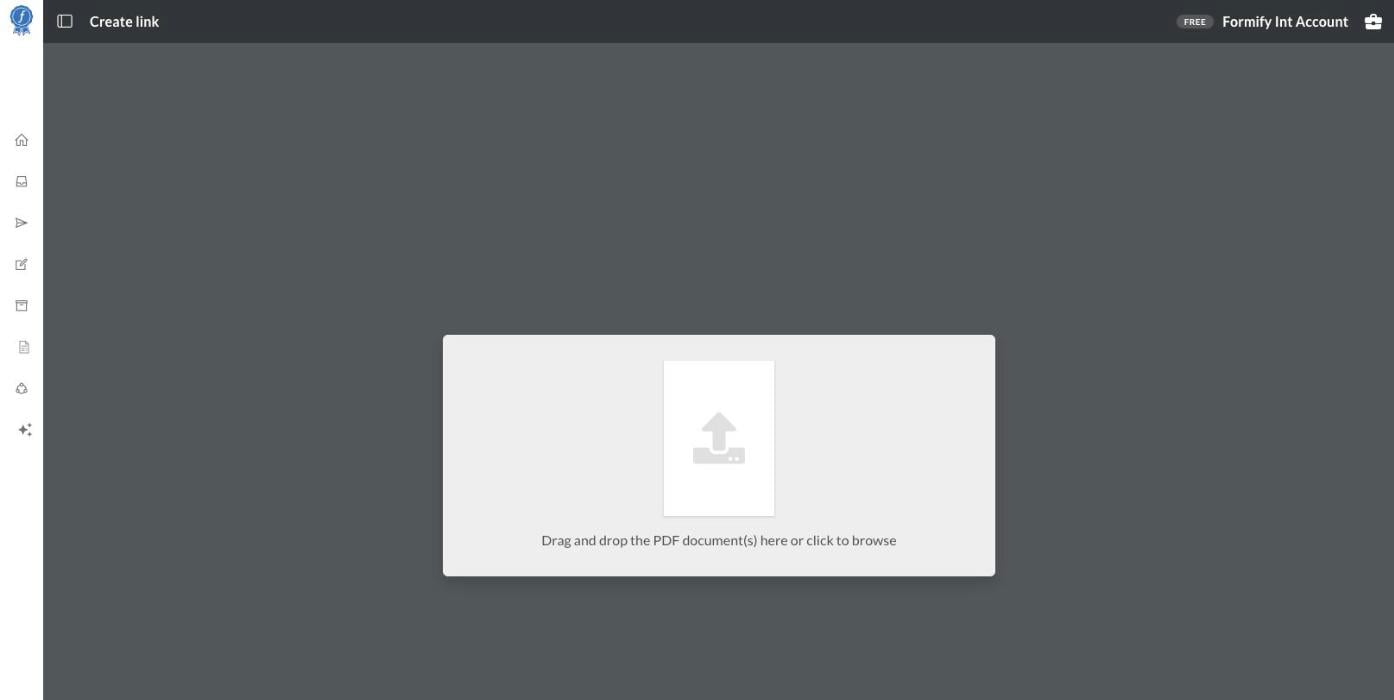
- The page “Create link” opens. Drag your PDF into the box, or click “Drag and drop the PDF document(s) here or click to browse” to choose a file. Click “Next”.
- Under “Document name”, enter the name signers will see. Click “Add signature field”.
- Click the + button, choose a signature type and place the field on the document. Click “Next”.
- Check the settings and click “Next”. The last page shows what the link costs per month.
- Click “Complete document”. The app says “Document link created”. Click “Go to Links”.
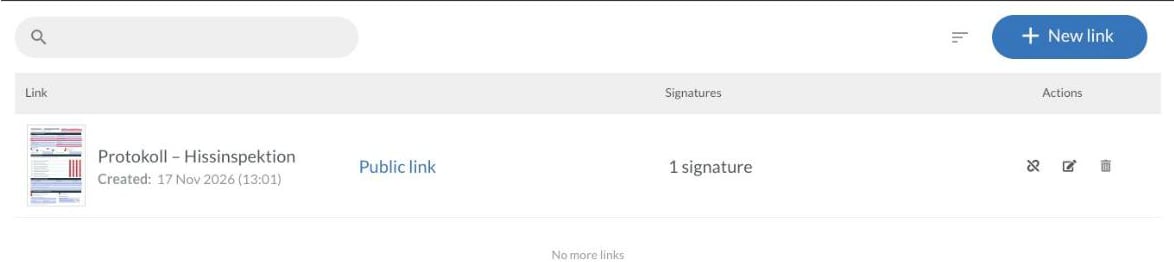
- Your new link appears in the “Links” list with the text “Public link”.
Good to know / Troubleshooting
- “Links” is grey with a lock. The add-on is not on. Hover over the lock to see “Formify links are an add-on”. Click the lock to open the store on the “Add-ons” tab.
- When you create a link, the app tells you what the link costs per month and that a prorated amount is charged for the rest of the current period.
- “Not enough credits”. You cannot create a new link without enough credits for that charge. Add credits first.
- A link costs credits until you withdraw or delete it. There is no refund for the current period.
- If you turn the add-on off, it stays on until the end of the period (“Active until period end”). After that, “Links” is locked again and you cannot create or manage links.