

Before you start
- Use OAuth when you can. The app says: “We recommend using OAuth 2.0 when possible. If an external tool doesn’t support OAuth 2.0, you can use an API key to connect tools like Postman, or custom integrations to the Formify API and MCP server.”
- The Formify MCP server URL is
https://mcp.formify.eu/mcp.
Steps
- Click the briefcase icon at the top right and select “Settings”.
- Open the “Integration” tab.
- Scroll down to “API keys” and click “Create new key”.
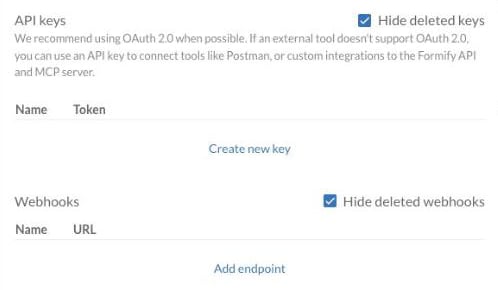
- Give the key a name that shows where it is used, for example “Manus MCP” or “Team AI client”, and click “Create”.
- The new key appears in the list. Click the copy button next to it (“Copy to clipboard”), or click the token to reveal it. Treat it like a password: the key stays visible in this list for everyone on the account, and anything that uses it acts as you, the user who created it.
- In your AI tool, add the server URL
https://mcp.formify.eu/mcpand paste the key as the token. If the tool only accepts HTTP headers, add the headerAuthorizationwith the valueBearerfollowed by a space and your key. - Check the connection by asking the assistant to list your Formify templates or documents.
Good to know / Troubleshooting
- Where is the MCP server address in the app? It is not shown on the “Integration” tab. Use
https://mcp.formify.eu/mcp. - Removing a key. In the “API keys” section, open the ”…” menu next to the key and select “Delete”. The key stops working right away. “Hide deleted keys” is selected by default; clear it to see deleted keys.
- Webhooks are in the same tab, under “Webhooks” with “Add endpoint”.
- Limits. The MCP server accepts 60 requests per minute per access token or API key.