

Before you start
- A simple signature (SES) uses 2 credits, so 10 free credits cover about five signatures a month.
- Unused free credits do not carry over. They expire on the renewal date, when the new month’s credits arrive.
Steps
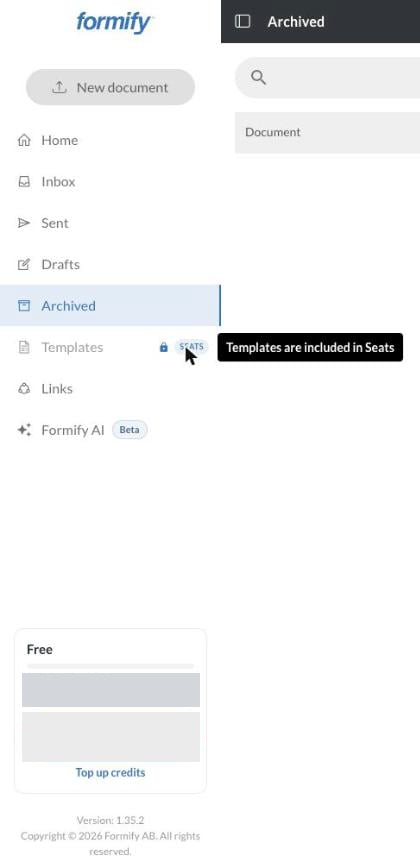
- Look at the box at the bottom of the left menu. On Free it says “Free”, ”… of 10 credits left” and “Renews” with a date.
- Send a document as usual. Sending uses credits from your balance. The credits that expire soonest are used first, so on Free and Top-up the free credits go first.
- To see what was used, click the briefcase icon at the top right, select “Settings”, open “Billing” and scroll to “Transactions”. The free credits show as “Monthly credits”.
Good to know / Troubleshooting
- Free credits renew every month on the date shown after “Renews”. The expiry details in Billing show the date this month’s free credits expire.
- Top-up and Seats also get the 10 free credits. The box looks different there. On Top-up it says “Top up” and ”… credits left”, which is your whole balance, with no renewal date. On Seats it says “Seats” and shows this month’s monthly credits.
- Paying account. Live ID signatures, SMS and WhatsApp invitations, and mobile number verification need an account that has bought credits with Top-up or has Seats. The lock is on the account, not on the credits. On Free, invitations go by email.
- Locked features. “Templates” in the left menu has a lock and a “SEATS” badge: templates need Seats. Signing links (“Links”) are an add-on paid with credits. Click the lock to open the store on the “Add-ons” tab. Only account administrators can turn add-ons on. See How do I turn on add-ons such as signing links or templates?
- Need more credits? On Free, click “Top up credits” in the box, under “Upgrade”. When your free credits are used up, the button says “Keep sending” instead. On Top-up, “Top up credits” is the button in the box. See How do I buy credits?