

Before you start
- SES with “Draw signature” works with the 10 free monthly credits.
- Live ID (AES) needs a paying account: one that has bought credits with Top-up or has Seats. On Free, the option is grayed out. See formify.eu/pricing.
- Which level a document legally needs depends on your business and country. Formify shows the level; it does not decide it for you.
Steps
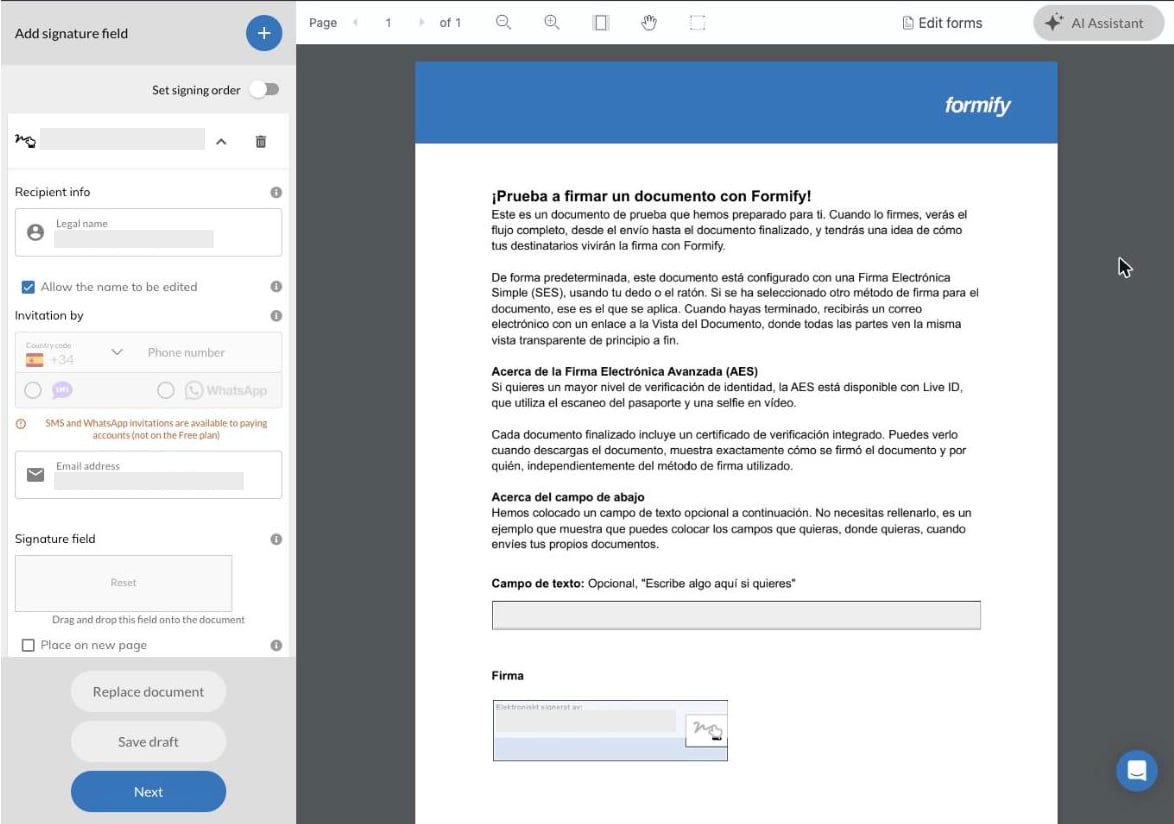
- Open your document in the editor (“New document”, then upload a PDF).
- Click the blue ”+” next to “Add signature field”.
- Choose the type for this signer:
- “Draw signature | SES - Simple Electronic Signature”: the signer draws their signature with a finger or mouse.
- “Live ID | AES - Advanced Electronic Signature”: the signer scans a passport or national ID card and records a video selfie. There is no drawn signature.
- Repeat for each signer. Each signer can have a different type.
Good to know / Troubleshooting
- The lowest signature decides the document’s level. The document is shown as AES only if every signer uses an AES type. One drawn signature makes the whole document SES.
- The level is shown under “Type of electronic signature” in “Document overview”. It is based on the types you chose, so it is shown before everyone has signed.
- “ID + draw signature” (SES) is available on request from Formify support.
- The menu can show more options for some countries.