

Steps
- Click “Inbox” in the left menu. A document moves there from “Sent” when everyone has signed.
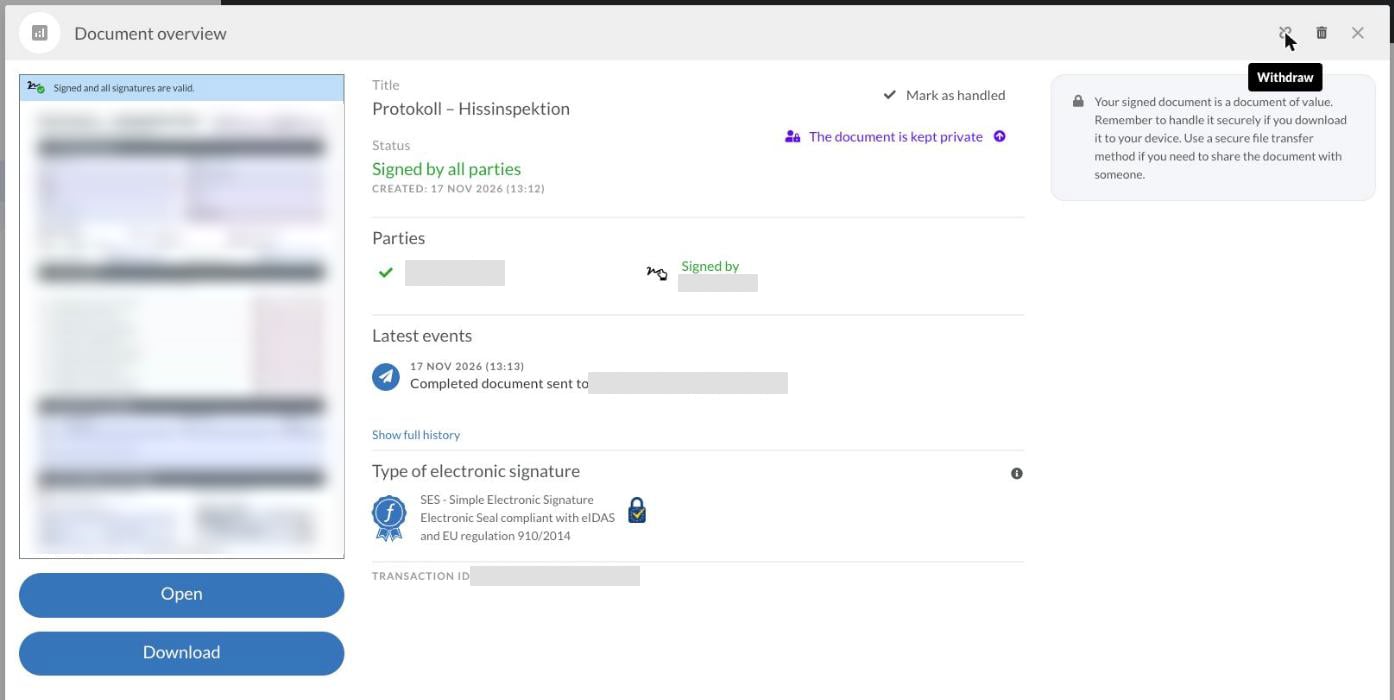
- Click the name of a document with the status “Signed by all parties”.
- In “Document overview”, the banner “Signed and all signatures are valid.” shows above the preview.
- Click “Download” to save the signed PDF, or “Open” to view it in a new tab.
- For a separate proof of the signatures, click “DOWNLOAD VERIFICATION ISSUED FOR THIS DOCUMENT”. This link only shows when the verification was made as a separate file. If “Embed document verification in signed document” was on in “Advanced settings” when you sent the document, the verification is inside the signed PDF instead.
Good to know / Troubleshooting
- Handle the file with care. The app says: “Your signed document is a document of value. Remember to handle it securely if you download it to your device. Use a secure file transfer method if you need to share the document with someone.” When the document is completed, it is also sent to each signer by email, text message or WhatsApp.
- I see “Preview” instead of “Open”, and no “Download”. The document is not signed by everyone yet. “Open” and “Download” show when the document is completed.
- “Document temporarily unavailable”. This only shows to the document’s owner. It applies to documents signed through a signing link while the account’s credit balance was negative or the account was suspended by Formify. The signers still have their copy. If the balance is the cause, settle it, then the signed document can be opened and downloaded again. See How do I buy credits?.