

Before you start
- You must be an account administrator. Other users see the switches greyed out and the text “Only account admins can change this.”
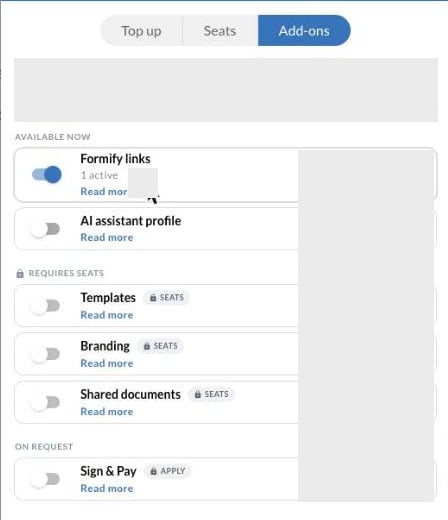
- The “Add-ons” tab groups add-ons in lists:
- “AVAILABLE NOW”: “Formify links” (signing links) and “AI assistant profile”.
- “REQUIRES SEATS”: “Templates”, “Branding” and “Shared documents”. They need a Seats subscription and also cost credits. With Seats, they are listed under “AVAILABLE NOW” and this heading is not shown.
- “ON REQUEST”: “Sign & Pay” (click “Contact Formify”).
- Make sure you have enough credits. See How do I check my credit balance?
Steps
- Click the briefcase icon at the top right and select “Settings”.
- Open the “Billing” tab.
- Without Seats (Free or Top-up), click “Manage add-ons” under the buttons in the “Credit balance” box. With Seats, click “Manage subscription” in the “Seats” card.
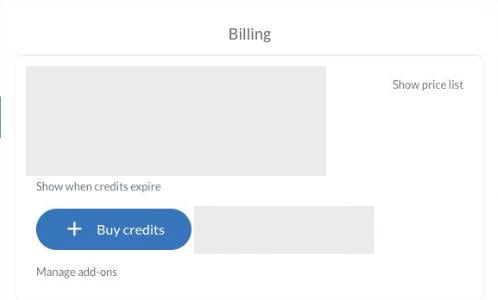
- A window opens. With Seats, open the “Add-ons” tab. Turn on the add-on you need with its switch and confirm. “Read more” under each add-on explains it.
- Click “Close” when you are done.
Good to know / Troubleshooting
- How add-ons are charged. “Templates”, “Branding” and “Shared documents” cost credits per user and month. When you turn one on, the first month for all users on the account is deducted at once. “Formify links” and “AI assistant profile” cost credits per link or profile and month. Turning them on is free; each link or profile is charged when you create it.
- “Not enough credits”. An add-on that is charged per user cannot be turned on until your balance covers the first month.
- Renewal. Each add-on renews every month from the day you turned it on.
- Active add-ons. “Formify links” and “AI assistant profile” show how many links or profiles you pay for, for example “1 active”. The other add-ons show “Active”.
- Locked items in the left menu. “Templates” (badge “SEATS”) and “Links” are locked until their add-on is on. Click the lock to open the “Add-ons” tab directly.
- Credit cost per add-on is shown in the “Add-ons” tab, in “Show price list” in Billing and on formify.eu/pricing.
- Turning off. Turn the switch off. The add-on shows “Active until period end” and switches off when the period ends. Credits already charged are not refunded.
- Without Seats, the same window also has the tabs “Top up” (buy credits) and “Seats”. With Seats, it has only “Seats” and “Add-ons”.