

Before you start
- Your account has one shared wallet. All users on the account use the same balance.
Steps
- Click the briefcase icon at the top right. Without Seats, the line “Top-up balance:” shows your total balance in credits. On Seats, the line “Monthly credits:” shows what is left of this month’s subscription credits, and “Top-up balance:” shows your other credits.
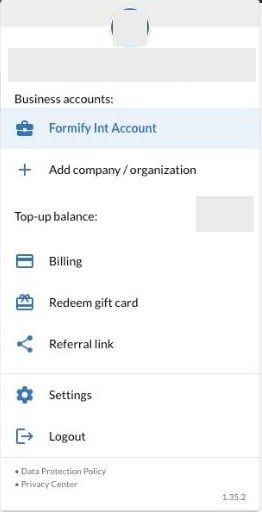
- For details, select “Settings” in the same menu and open the “Billing” tab.
- Without Seats, you see your total balance in credits under “Credit balance”. On Seats, you see a “Seats” card with your “Monthly credits” and your “Top-up balance:”.
- Click “Show when credits expire” to see which credits expire and when, and which have no expiry. Click “Hide expiry details” to close it again.
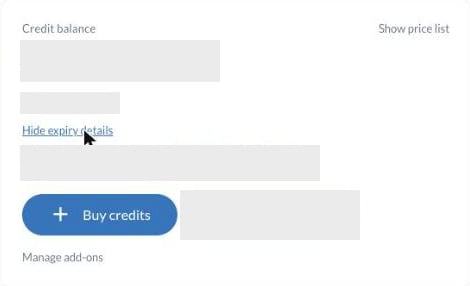
- Scroll down to “Transactions” to see each credit added or used, with date.
Good to know / Troubleshooting
- The left menu shows a different number. On Free, the box at the bottom of the left menu (“Free”, ”… of 10 credits left”) counts only this month’s free credits. On Seats, it counts only this month’s monthly credits. On Top-up, it shows your whole balance.
- Credits that expire. Monthly free credits expire on their renewal date (“Renews …” in the left menu on Free). Your other credits show their expiry date, or “no expiry”, in the expiry details.
- A negative “Top-up balance:” means the account has used more credits than it had. Billing then says “Your account is overdrawn” and how to clear it.
- “indexed pages” in Billing are a free monthly allowance for AI document indexing, counted separately from credits. When they are used up, indexing costs credits.
- Out of credits in the AI chat. The chat says “AI work uses credits, and your account has none left.” Use the buttons in the message: “Top up” or “Upgrade” without Seats, “Add monthly credits” on Seats. See How do I buy credits?