

Before you start
- Templates need to be turned on for your account (they need Seats, and an account administrator turns them on).
- You can only edit or delete your own templates. The pencil icon and the trash can do not show on templates a colleague has shared.
- Use a computer. Editing a template does not work on a mobile device.
Steps
- Click “Templates” in the left menu.
- Find the template. Use the search field if the list is long.
- Click the pencil icon under “Actions” on that row. In a narrow window, click the three dots on the row and then “Edit template”.
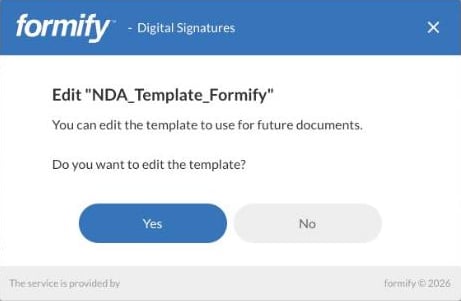
- A window opens: Edit “[template name]”, “You can edit the template to use for future documents.”
- Click “Yes” to open the template for editing, or “No” to go back.
- Make your changes and save the template with “Save template”.
Good to know / Troubleshooting
- Changes are for future documents. The app says: “You can edit the template to use for future documents.” Documents already sent and drafts already made from the template do not change.
- Clicking the template name does not open it for editing. The name starts a new document from the template. Use the pencil icon to edit.
- The icons under “Actions” are a sparkle, a pencil and a trash can. Hold the pointer over the pencil or the trash can to see “Edit template” or “Delete”. The sparkle opens a menu with “Send this template with AI” and “Open copy with AI”. It does not show if your account has turned AI features off.