

Before you start
- Credits from all seats go into the account’s shared wallet.
- Current offers are shown in the app.
Steps
- Click the briefcase icon at the top right, select “Settings” and open the “Billing” tab.
- Click “Upgrade to seats” in the “Credit balance” box. (The same window also opens from “Manage add-ons” in Billing and, where it is shown, from “Top up credits” at the bottom of the left menu.)
- If the window opened on another tab, open the “Seats” tab.
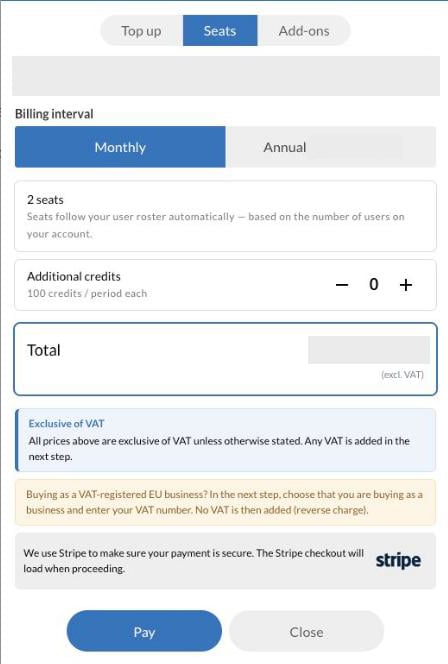
- Under “Billing interval”, choose “Monthly” or “Annual”.
- Check the number of seats. The app says: “Seats follow your user roster automatically — based on the number of users on your account.”
- Under “Additional credits”, use + or - if you want extra credits each period (“100 credits / period each”).
- Check the “Total” and click “Pay”. The app says: “We use Stripe to make sure your payment is secure. The Stripe checkout will load when proceeding.”
Good to know
- With Seats you can turn on templates, branding and shared documents with credits. See How do I turn on add-ons such as signing links or templates?
- Adding people. To add a colleague, an account administrator invites them. The seat is added and charged as soon as the invitation is sent, before it is accepted. The invite window shows the extra cost, and the prorated amount for the rest of the current period is charged right away. See How do I invite a colleague to my account?
- Removing people. Removing a user lowers the number of seats. You get no refund for the current period.
- Cancelling. An account administrator clicks “Manage subscription” in Billing and then “Cancel subscription”. The app tells you that Seats stays active until the end of the period, that the monthly credits then stop renewing and seat-based add-ons are deactivated, and that remaining top-up credits are not affected.
- VAT. Prices are shown excluding VAT. If you are a VAT-registered EU business and have not given Formify your VAT number yet, choose in the next step that you buy as a business and enter your VAT number (reverse charge).
- Changed your mind? Click “Close”.